Driver display
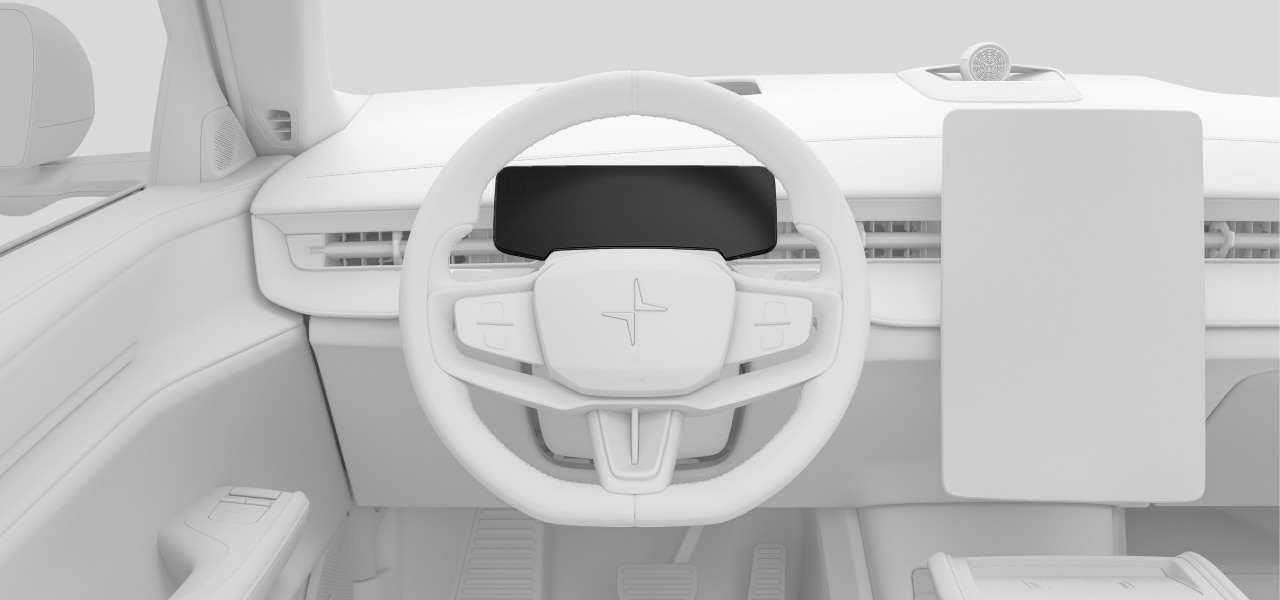
The driver display is located in front of the driver, behind the steering wheel. Its position changes along with the steering wheel when you adjust it to your preferred driving posture.
- Warning and indicator symbols
- Speed
- Navigation
- Driver support information and status
- Notification messages
- Battery meter
- Power meter
Controlling the driver display
You can use the steering wheel buttons to interact with the driver display, control what's shown on it and use certain functions. When you move your finger over the touch-sensitive buttons, the function associated with each button appears in the driver display. These functions may change depending on the context but typically include controls for driver support, media and voice controls.
Display modes
There are three driver display modes that you can choose from: calm, surround and map. Use the buttons on the steering wheel to change the display mode.
| Calm | This displays essential information, such as speed, battery level and range, as well as warning and indicator symbols. |
| Map | The driver display shows your current navigation route on a map as well as essential driving and car information. |
| Surround | In this mode, you can see a depiction of the car and its positioning on the road. The same essential information as calm mode is also displayed. |
Important
Using surround mode
Surround mode cannot perfectly depict what is really happening on the road around you, so do not rely on it when you are driving.
Warning
Important
Clear space around the driver display
Do not hang or place any objects on the steering column in front of or behind the driver display. You risk damaging the driver display if an object is placed there when the steering wheel position changes.