Steering wheel controls
The steering wheel has several buttons and control surfaces. They control specific functions, such as the horn, as well as certain settings, adjustments and the information shown in the instrument panel.
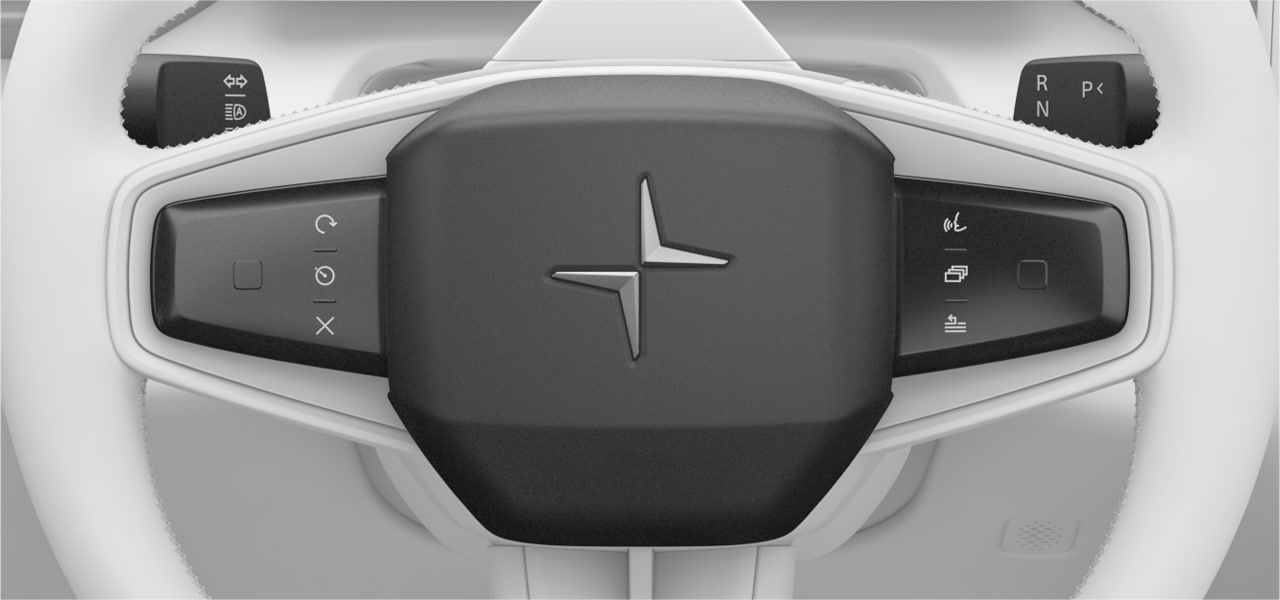
- Touch-sensitive buttons and navigation pads
- Left-hand stalk
- Right-hand stalk
- Horn
Touch-sensitive buttons
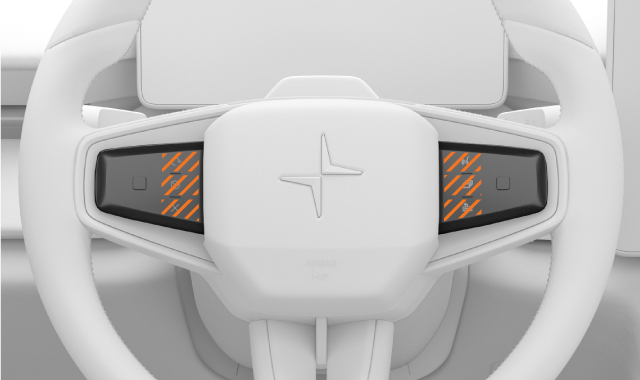
There are three specific buttons on each side of the steering wheel, near the center of the wheel. These inner touch button zones correspond to certain actions when they are available.
 | Resume your most recently used driver support feature |
 | Activate Pilot Assist |
 | Cancel the active driver support feature |
 | Activate the digital assistant |
 | Switch between instrument panel modes |
 | Access the instrument panel menu |
Touch-sensitive navigation pads
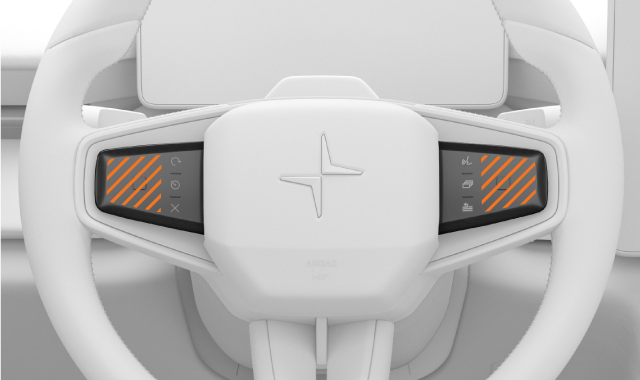
In addition to the inner buttons, your steering wheel has a contextual navigation pad on each side. These touch button zones are towards the outside. The outer buttons on the left side of the steering wheel typically control driving-related features. The buttons on the right side usually control media features and menu navigation. Their functions change depending on the context and often correspond to what's currently shown in the displays.
Interacting with the touch-sensitive buttons
You can find the touch zone you’re looking for by moving your finger across the buttons. The function associated with each touch zone appears in the instrument panel, on the same side as the set of buttons you are touching.
To use the buttons, move your finger to the touch zone associated with the function you want to use. When the function is indicated in the display, press the button.
Driving controls
 | Power delivery type | Switch between prioritizing range and performance. |
 | One Pedal Drive | Adjust the level of braking when you release the accelerator |
Note
Driver support controls
When Pilot Assist is enabled, you can use the buttons on the left side of the steering wheel to adjust some of its features, including:
 | Increase time interval to vehicles ahead |
 | Decrease time interval to vehicles ahead |
 | Increase target speed |
 | Decrease target speed |
Media controls
- Change media tracks
- Pause and play media
- Increase and decrease the volume
- Answer and end calls
- Mute and unmute your microphone