Connect key to user profile
It is possible to connect your key to a profile. In this way, the profile is selected automatically with all its settings every time the specific key is identified during unlocking or opening the driver door.
If the key has not been linked to a profile, the profile last used will be activated when the car is started. When the car is first started, the Owner profile is selected automatically.
Linking a key to a profile
Note
If the key was previously linked to another profile, the link is moved from the previous profile to the active profile.
Tap on the initials at the top of the centre display.
Tap on  in the active profile.
in the active profile.Select Connect key to profile to link the selected key to a profile.
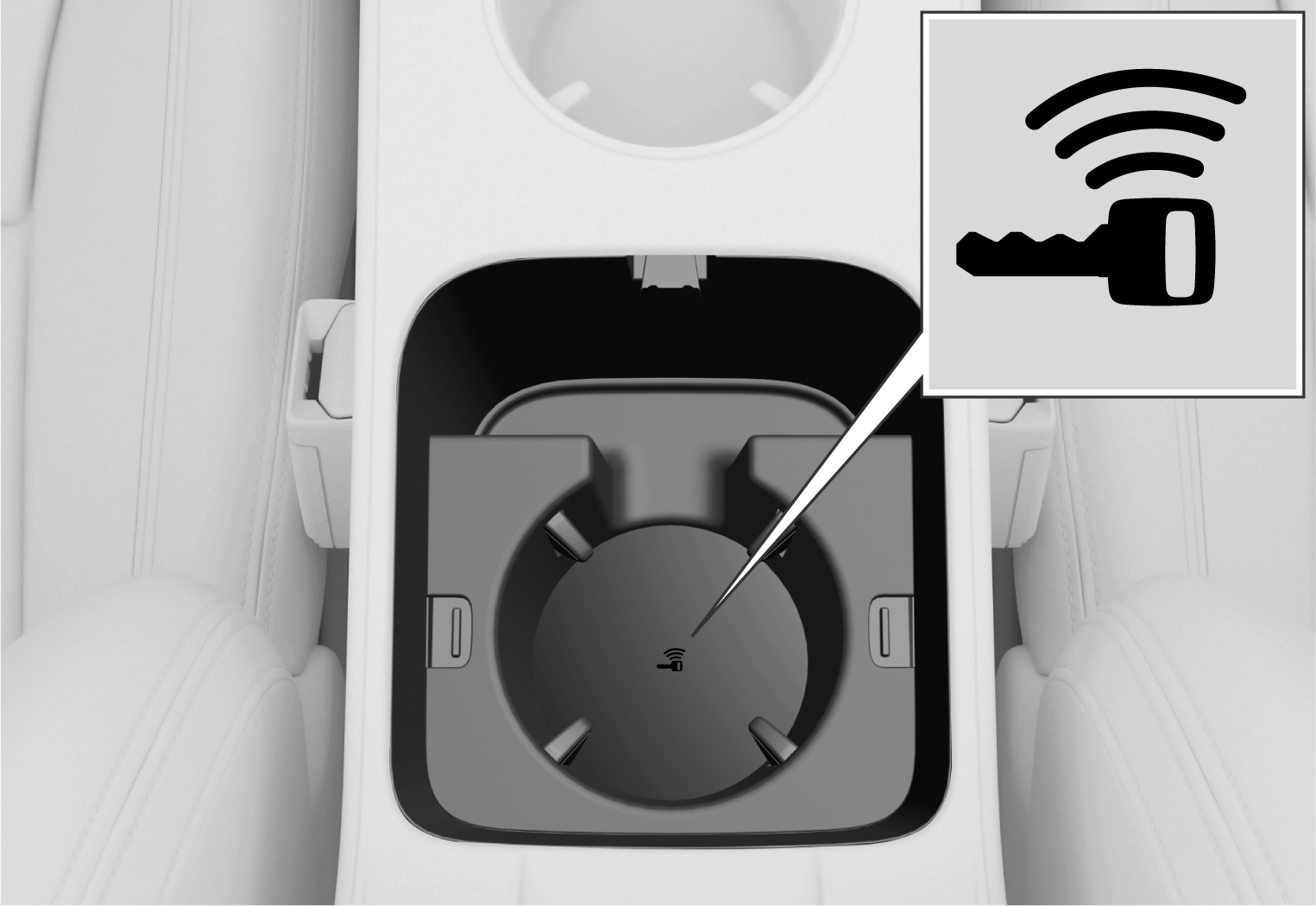
It is only possible to link a profile to the key currently being used in the car. If there are multiple keys in the car, the More than one key found. Place the key you want to connect on the backup reader. message is shown.
Disconnecting a key from a profile
Tap on  at the top of the centre display.
at the top of the centre display.Tap on the profile required.
Select Disconnect key from profile to remove the active profile from the linked key.
You can unlink a key from a profile even if the key is not inside the car.
